4. Devices and operating systems

Your platform defines your exposure
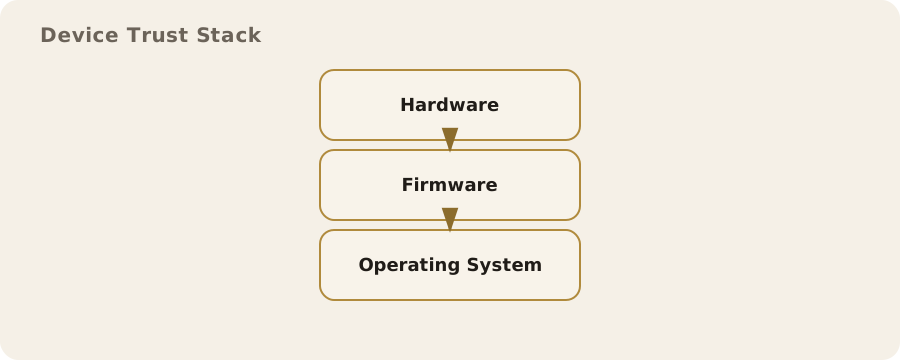
The device in your hand is not just a screen and a set of apps. It is a collection of sensors, radios, storage, and software layers that make decisions about what runs, what is recorded, and what can be shared. The operating system (OS) sits at the centre of that, acting as the traffic controller between hardware, apps, and the wider internet. That control is what makes modern devices useful, and it is also what defines their exposure.
There is no universally “safe” platform. Each device and OS makes design choices that trade convenience, cost, and compatibility against privacy and security. Understanding those choices makes it easier to decide what you can rely on, what you should manage directly, and what you simply accept as a cost of using technology in daily life.
The OS as a gatekeeper
An operating system is the layer that decides which programs can run, how they access files, and how they use hardware such as the microphone, camera, and location services. Modern phone operating systems, for example, use permission systems to control access to sensors. When an app asks to use the camera, the OS prompts you to grant or deny it. On a laptop, the OS may offer similar prompts but often allows broader access by default.
A common misunderstanding is that these prompts are a simple on/off switch for privacy. They are not. Granting location access to a weather app does not automatically share your entire device history, but it does allow the app to collect and transmit location data while it is running. Some operating systems allow “approximate” or “precise” location; the difference can be significant if you live or work somewhere sensitive.
In practice, permissions work best when you use them to reduce casual exposure rather than to create a perfect boundary. A ride‑hailing app needs precise location; a torch app does not. Restricting the latter is meaningful. Expecting the former to operate without location is unrealistic. The key is to give access only when it is needed, and to revisit those choices after updates.
Phones: convenience by design
Smartphones are built for constant connectivity. They carry multiple radios (mobile, Wi‑Fi, Bluetooth, often NFC), are usually signed in to a central account, and are always at hand. This makes them extraordinarily powerful but also naturally revealing. Even without any unusual behaviour, your phone creates a stream of metadata: which networks you connect to, how often you move between cell towers, and which apps are active at any given time.
On mainstream mobile platforms, security is typically strong against common malware and low‑effort attacks because apps are sandboxed. A sandbox is a restricted environment that prevents an app from reading data from other apps or the OS. This is a real advantage over older desktop systems where one compromised app could read almost everything. The downside is that the platform owner becomes the ultimate gatekeeper, deciding which apps are allowed, how updates are handled, and what diagnostic data is collected.
In everyday terms, this means you are relying on a vendor’s choices. That is not necessarily a problem, but it is a dependency. If you install an app from an official store, it is likely to be safer than one downloaded from an unknown site. The risk you still accept is that the app may collect more data than it needs, or that the platform’s own services gather usage data for analytics and personalisation. You can reduce this by turning off optional telemetry, limiting background refresh, and reviewing which apps are allowed to run when you are not using them. What you cannot fully avoid is that the OS will still communicate with the vendor for updates and essential services.
Laptops and desktops: flexibility and exposure
Traditional desktop and laptop operating systems offer more control and more surface area. They are designed to run a wider variety of software, often from any source you choose. That flexibility is useful for work and creative tasks, but it also increases exposure: there are more ways to install software, more background services, and typically a broader range of hardware drivers with uneven security histories.
A real‑world example is the difference between installing a plug‑in for a photo editor and installing a browser extension. The plug‑in may only access image files you open. The extension, however, can see your web traffic and interact with websites you visit. This is a common source of misunderstanding; people often treat extensions as small accessories rather than full‑powered software. On most desktop browsers, extensions can effectively read what you see and do online, so limiting the number and origin of extensions is a practical step that reduces risk without requiring specialist knowledge.
Desktop operating systems also tend to allow multiple user accounts, which can separate work and personal activities. That is not a perfect boundary, but it is useful. A dedicated account for banking or for children’s use reduces accidental cross‑contamination. It also reduces the impact of certain types of malware that rely on user permissions.
Updates: the uncomfortable trade‑off
Software updates are the most effective defence against routine security issues. They also change behaviour, add features, and sometimes introduce new data collection. This is not paranoia; it is a practical reality of software development and business models. The risk is that delaying updates leaves you vulnerable to known flaws, while installing them may alter privacy settings or introduce new tracking integrations.
A balanced approach is to update promptly but deliberately. Review major update notes when you can, and quickly revisit privacy settings afterwards. On mobile devices, updates are usually safer and more predictable because the hardware and software are tightly integrated. On desktops, updates can sometimes affect drivers or remove older functionality. The risk cannot be eliminated, but it can be managed by making updates part of a routine rather than a reaction to a scare.
Accounts, identity, and device binding
Modern operating systems encourage you to sign in with a central account. This enables sync, backups, and the ability to find a lost device. It also links activity across devices. If you use a phone, tablet, and laptop from the same vendor and account, the vendor can see patterns of usage across all of them. That may be acceptable; it often makes life easier. The trade‑off is that your device identity becomes strongly tied to a single account.
In practice, you can choose how deep that link goes. For example, you might use a central account for app updates and device recovery, but keep your browser profile or email on a separate provider. This reduces correlation without requiring total separation. It is also worth considering local accounts on desktops for tasks that do not need synchronisation. In the UK context, this matters when using shared family computers or devices at work, where identity boundaries can blur in ways that affect privacy more than security.
Pre‑installed software and the unseen surface
Many devices come with software you did not choose. Some of it is harmless and can be ignored. Some of it is commercial, tied to partnerships or ad networks. This is more common on budget phones and laptops. The risk is not always that the software is malicious, but that it increases the number of services running and the amount of data shared in the background.
Where possible, remove or disable applications you do not use. On some platforms this is limited, but even disabling can help by stopping background access. If you are buying a new device, higher‑end models often have fewer pre‑installed components. That is not a guarantee of privacy, but it can reduce clutter and simplify what you need to manage.
Encryption and storage realities
Most modern devices use full‑disk encryption, which scrambles data on storage so that it cannot be read without the correct key. On phones this is usually automatic, tied to your lock screen code. On laptops it may be optional. This is an important mitigation against physical loss or theft. It does not prevent access while the device is unlocked or by any software you grant permission to use your files.
A common myth is that encryption protects against all forms of monitoring. It does not. It protects data at rest. It does not protect data you are actively using, nor does it prevent the OS or apps from sending information over the network. It is still worth enabling because physical loss is a routine risk, especially with phones and portable laptops.
Network radios and the trail they leave
Devices communicate through radios that announce their presence. Wi‑Fi, Bluetooth, and mobile radios all leave signals that can be observed by nearby equipment. In busy places, such as train stations or shopping centres, these signals are routinely used to manage networks and crowd flows. This is not necessarily sinister, but it is a reality of how modern infrastructure works.
You can reduce unnecessary exposure by turning off radios you do not use. This is especially relevant for Bluetooth, which is often left on for convenience. Turning it off when you are not using it reduces the chance of unwanted pairing attempts and passive tracking. The trade‑off is convenience: wireless headphones and smart watches depend on it. The point is not to keep everything off, but to understand that each radio is a small broadcast channel.
Alternative operating systems and custom builds
Some people install alternative operating systems to reduce data collection or to gain more control. On phones, this is often called a custom ROM. On desktops, it may mean a Linux distribution rather than Windows or macOS. These choices can reduce reliance on a single vendor and can allow more visibility into what the system is doing. They can also introduce new risks: fewer security updates, weaker hardware support, or reduced compatibility with banking apps and contactless payments.
In the UK, a practical issue is access to services that require strong device attestation, such as certain banking or government apps. A modified OS may fail those checks even if it is otherwise secure. That can force you back to a mainstream device for essential services. This is a clear example of a trade‑off that cannot be wished away: more control can mean less compatibility. For some people that is acceptable; for others it creates more risk by pushing them towards workarounds.
Shared and managed devices
Devices supplied by employers or schools are usually managed. This means the organisation can install software, enforce policies, and sometimes monitor usage. It is not always malicious; it is often required for compliance and support. The risk is that personal activity on a managed device can be observed or logged. The mitigation is behavioural rather than technical: keep personal use minimal, and treat managed devices as work equipment.
For shared family devices, the risk is more about accidental exposure. A parent leaving a browser logged in can expose personal email or bank details to a child. Separate user accounts and lock screens are a simple, effective practice that reduces this risk without needing specialist tools.
Choosing devices with context in mind
There is no single “best” device for privacy or security. A phone that is excellent for security updates may collect more analytics by default. A device that is flexible and open may require more attention to avoid insecure software. Your context matters: someone working with sensitive sources or in a regulated profession will accept different trade‑offs to a student who values convenience and cost.
A practical way to think about this is to map what you do to the device you use. If you do online banking, choose the most stable, well‑supported platform you can, keep it updated, and avoid unnecessary software. If you value experimentation and learning, use a separate device or a separate account where the stakes are lower. This is not about fear; it is about aligning the platform with the role it plays in your life.
What to revisit regularly
Devices and operating systems change quietly over time. A phone that was private enough for your needs two years ago may not be now, simply because your usage has changed. Revisit the following from time to time:
- Which apps have access to location, microphone, and camera.
- Whether background activity is necessary for each app.
- Browser extensions and installed plug‑ins.
- Whether your OS and firmware updates are current.
- Whether you still need all accounts signed in on a given device.
These checks are not a one‑off task. They are the basic maintenance that keeps exposure aligned with your intentions. The goal is not perfection. It is to make your devices behave in ways that are predictable and appropriate for the life you actually live.