4.1 Desktop and laptop operating systems
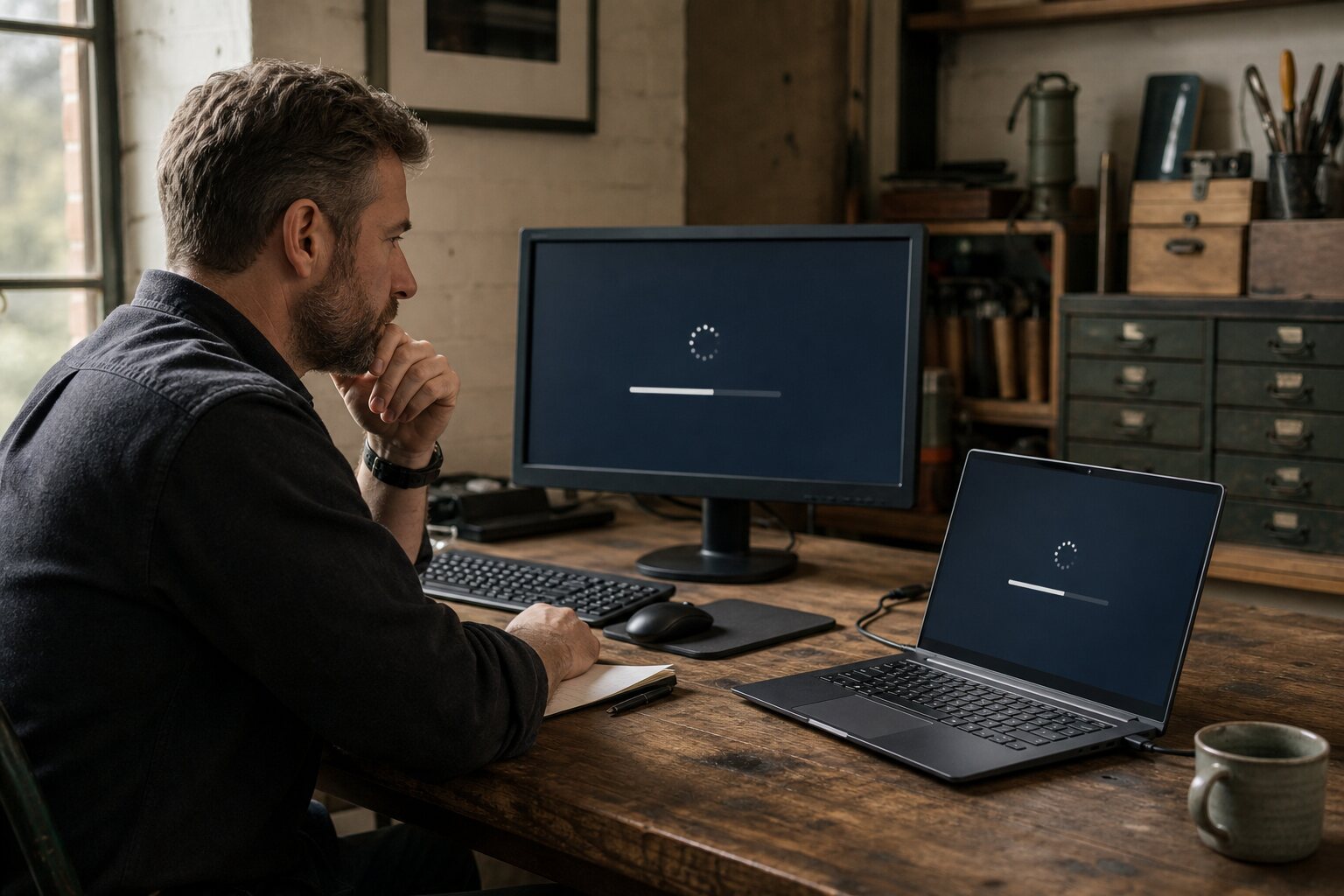
Control and convenience on the same machine
A desktop or laptop operating system is the layer that decides what runs, who can change it, and what it tells the outside world. It is not just a background detail. It shapes how updates arrive, what is visible to the vendor, and how easily you can check what the system is actually doing. For most people it also decides what software can be installed, how well hardware works, and how much time is spent on maintenance.
There is no single "best" choice. The balance is between control and convenience, and the right point on that balance depends on how you use the machine. A journalist travelling with sensitive sources has different needs from a parent sharing a laptop with children. Even in day-to-day office work, the right choice can change if the machine is a work asset managed by an employer rather than a personal device.
Linux, Windows and macOS: trade-offs in practice
Linux: flexible, inspectable, but uneven
Linux is a family of operating systems built on an open source kernel. "Open source" means the code is published for anyone to inspect, improve or compile. In practice you choose a distribution (often shortened to "distro"), such as Ubuntu or Fedora, which packages the kernel with a desktop environment and tools. The advantage is control: you can decide what services run, how updates are handled, and which parts of the system are installed.
That control comes with variation. Hardware support can be excellent on one laptop and awkward on another, especially with newer Wi-Fi chips or proprietary graphics drivers. Some professional software is missing or only available through alternatives, which can be fine for browsing and writing but limiting for specialist work. For everyday use, a modern Linux desktop can be as straightforward as any other system, but the quality depends heavily on the distribution and the hardware vendor.
A practical example: a developer running a Linux laptop can inspect network connections with built-in tools and disable background services they do not need. That same laptop might struggle with a proprietary video conferencing client, leading to workarounds or a secondary device. The flexibility is real, but so is the responsibility for making it work smoothly.
Windows: broad compatibility with tight vendor control
Windows is the most widely used desktop operating system in the UK. Its strongest point is compatibility with hardware, games and mainstream business software. It also integrates with enterprise tools used by employers, which matters if the device is managed under workplace policies.
The trade-off is that Windows is a closed platform controlled by a single vendor. It includes built-in telemetry (diagnostic and usage data collection) and tends to enforce updates. For a home user this can be a relief: security patches arrive without much effort. For a technically confident user, forced changes can be frustrating or even disruptive. For example, a large update can reboot a laptop during travel, or change privacy settings after installation.
Mitigations exist. You can adjust privacy settings, limit advertising identifiers, and set active hours to reduce inconvenient restarts. On professional editions you can defer updates, though you cannot fully opt out of the update system without losing security coverage. That means there is a baseline level of vendor control you accept when you use Windows.
macOS: integrated design, good default security, limited inspection
macOS is tightly integrated with Apple hardware. That integration generally improves stability, battery life and driver support. It also delivers a strong default security posture, including built-in encryption and app signing checks. For many people it is the most "it just works" option.
The limitations are similar to Windows: the core system is closed, updates are controlled by the vendor, and deep inspection of system behaviour is limited. Apple collects diagnostic data, and while settings allow some control, you are still working within the boundaries set by the platform. Software distribution is more controlled than on Windows, especially through Apple’s security mechanisms and default store recommendations.
A real-world case: a researcher may choose macOS for its stability and good battery life when travelling, accepting that they cannot audit the kernel. If they require a verifiable build process or a fully inspectable system, they may keep a Linux machine for the work that needs it.
Telemetry and forced updates
Telemetry is data sent back to the vendor about system health, usage patterns, crashes and hardware configuration. It is often presented as a way to improve reliability, and in many cases it does help diagnose bugs. The privacy concern is not just the existence of telemetry, but the scope, the default settings, and the opacity of what is collected.
Forced updates sit on the other side of the same coin. Updates close security holes and fix faults, but they also change behaviour. On Windows and macOS, most users cannot indefinitely postpone updates. On Linux, you can control the timing, but you must remember to apply them.
A common misunderstanding is that turning off updates is safer because it reduces change. In reality it increases exposure to known vulnerabilities that are routinely exploited. The practical approach is to control timing rather than avoid updates. For example, a small business might schedule updates outside business hours and keep a tested backup image in case a change breaks a critical piece of software.
Mitigations differ by platform. Windows and macOS let you reduce telemetry but not fully eliminate it without breaking support agreements or core functions. Linux offers more control, but many applications still collect their own telemetry, and some cloud-connected services log activity at the server regardless of your desktop settings. It is better to think in layers: the operating system is one layer, applications and online services are others.
Auditability and trust
Auditability is the ability to inspect what the system is doing and verify that it matches its description. Open source code makes this possible in theory, but it does not guarantee that anyone has actually audited the specific version you are running. Closed systems rely on vendor trust and independent security research rather than direct user inspection.
Linux provides the most direct path to inspection, but there is a practical limit: few individuals can review millions of lines of code or verify a build from source. Trust is often delegated to distributions, package maintainers and established security communities. This is still a meaningful difference from closed systems, because those groups can and do detect issues, but it remains an imperfect model.
A common myth is that open source is automatically safe. In reality, open source projects can be under-resourced, and some vulnerabilities go unnoticed for years. The improvement is that once found, issues can be fixed publicly and independently, with less reliance on a single vendor’s response.
If auditability matters to you, there are practical steps that help: use widely supported distributions, prefer packages from official repositories, keep systems updated, and avoid adding unnecessary third-party repositories. These steps do not remove all risk, but they reduce the number of unknowns.
Software ecosystem risks
The operating system is only part of the risk picture. Most real-world compromises arrive through applications, browser extensions, or unsafe downloads. The Windows ecosystem is the largest target because of its market share, but macOS and Linux are not immune. The key difference is the way software is distributed and how much control the system gives you over it.
On Windows, downloading installers from the web is common. This increases the risk of tampered installers or bundled unwanted software. On macOS, the system encourages downloads from the App Store or notarised applications, which reduces but does not eliminate risk. On Linux, most software is installed through package repositories, which is generally safer, but adding unofficial repositories can undo that advantage.
A practical example: a freelance designer might install a popular free font manager from a third-party site and inadvertently add adware on Windows. On macOS, they might be prompted to grant extensive permissions to a similar tool. On Linux, they might add a personal package archive (PPA) to get a newer version, which introduces a new trust dependency.
Mitigation is less about paranoia and more about hygiene. Use official sources where possible, keep a short list of trusted vendors, and remove software that is no longer used. On shared machines, separate user accounts reduce the impact of mistakes. Some risks cannot be fully eliminated, especially when a needed application is only available from a single vendor. In those cases, the risk is managed by understanding who you are trusting and limiting the software’s access where practical.
Choosing with context in mind
The right operating system depends on the environment you are in and the consequences of failure. In a UK workplace, employer policies and device management tools may limit what you can change, regardless of your personal preference. For personal devices, the trade-off is between the convenience of managed updates and a tightly integrated system, and the control that comes with a more open platform.
None of these choices remove the need for sensible habits: using a strong login password or passphrase, keeping backups, and being cautious about software sources. Those habits matter more than the brand of the operating system, and they apply even when the system feels secure by default.